Как отображать и изменять расширения файлов в Windows 11?

File extensions are the letters that appear at the end of a file name, such as .jpg, .mp4, .pdf, or .docx. They help Windows identify the file type and determine which program should open it. However, in Windows 11, file extensions are hidden by default for many common file types. While this may simplify the interface, it can make it harder to identify files or manage different formats.
Showing file extensions allows users to quickly recognize file types, organize files more efficiently, and avoid opening potentially unsafe files disguised with misleading names. It is also helpful when you need to modify or change file extensions during file conversion or organization.
In this guide, we will explain how to show file extensions in Windows 11 using built-in system settings. as well as introduce how to change file extensions more easily.
1. Why Showing File Extensions Is Important
Displaying file extensions provides several benefits, especially for users who frequently work with files.
- Better File Identification : Visible extensions make it easy to recognize file types, such as report.pdf vs report.docx.
- Improved Organization : You can quickly sort and manage files by type, especially when working with large collections.
- Security Awareness : Hidden extensions can disguise malicious files like image.jpg.exe, which may appear as image.jpg.
- Easier File Conversion : When changing file formats, visible extensions ensure you edit the correct part of the filename.
2. How to Show/Display File Extensions in Windows 11?
There are several simple ways to display file extensions in Windows 11. The easiest method is through File Explorer settings.
Method 1: Show File Extensions Using File Explorer
This is the fastest and most commonly used method to display file extensions:
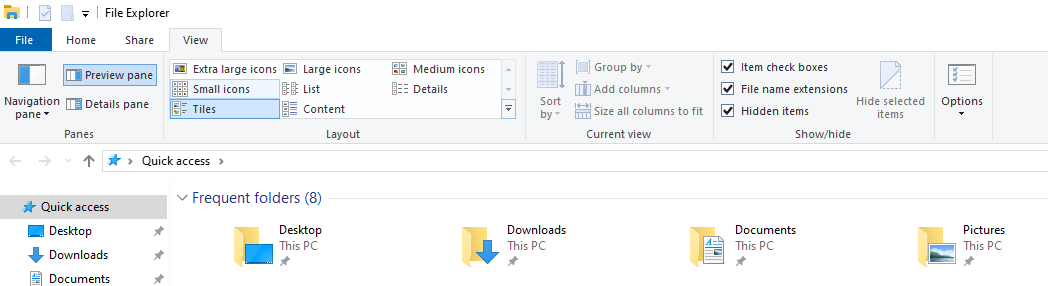
- Нажимать Windows + E on your keyboard or click the File Explorer icon from the taskbar.
- At the top of the File Explorer window, click the Вид вариант.
- In the dropdown menu, hover over Показывать /Hide to expand additional options.
- Check the option Расширения имен файлов . Once enabled, Windows will immediately display the extensions for all files.
For example:
photo.jpgvideo.mp4document.pdfarchive.zip
You will now be able to easily see the file types directly in File Explorer.
Method 2: Show File Extensions Through Folder Options
Another way to show file extensions is through the Folder Options settings .
Шаги:
- Open any folder on your computer, click the three-dot menu (···) at the top toolbar and select Параметры .
- В Folder Options window, click the Вид tab, then scroll through the list and locate the option: Hide extensions for known file types . Uncheck this box and click Применять , затем ХОРОШО .
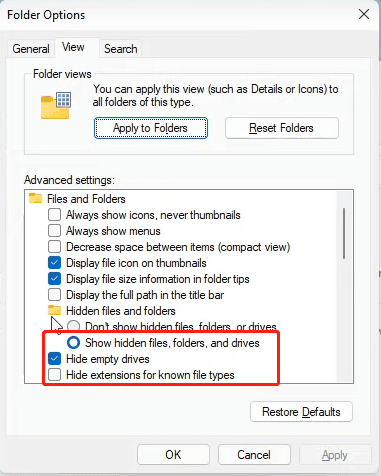
After this change, Windows will display file extensions for all file types.
Method 3: Show File Extensions with Windows Settings (Advanced Users)
Advanced users can also control file extension visibility through system configuration or registry adjustments, although this method is rarely necessary for most users. The File Explorer method is generally sufficient and much faster.
3. How to Change File Extension in Windows 11?
While Windows allows users to rename files manually, the process becomes inefficient when dealing with multiple files or complex renaming tasks. If you need to change extensions for many files at once, a dedicated tool like Swyshare RenameKit is a much better solution.
Swyshare RenameKit is a professional bulk file renaming tool designed to help users rename large groups of files quickly and accurately. It supports Windows and Mac, and offers a wide range of renaming rules and automation features.
Основные характеристики Swyshare RenameKit:
- Bulk rename thousands of files simultaneously
- Change file extensions easily
- Add prefixes or suffixes to filenames
- Insert numbers, dates, or custom text
- Preview changes before applying them
- Rename images, videos, documents, and folders
Steps to Change File Extensions on Windows 11 with Swyshare RenameKit :
- Download, install and and launch Swyshare RenameKit for your Windows 11 device.
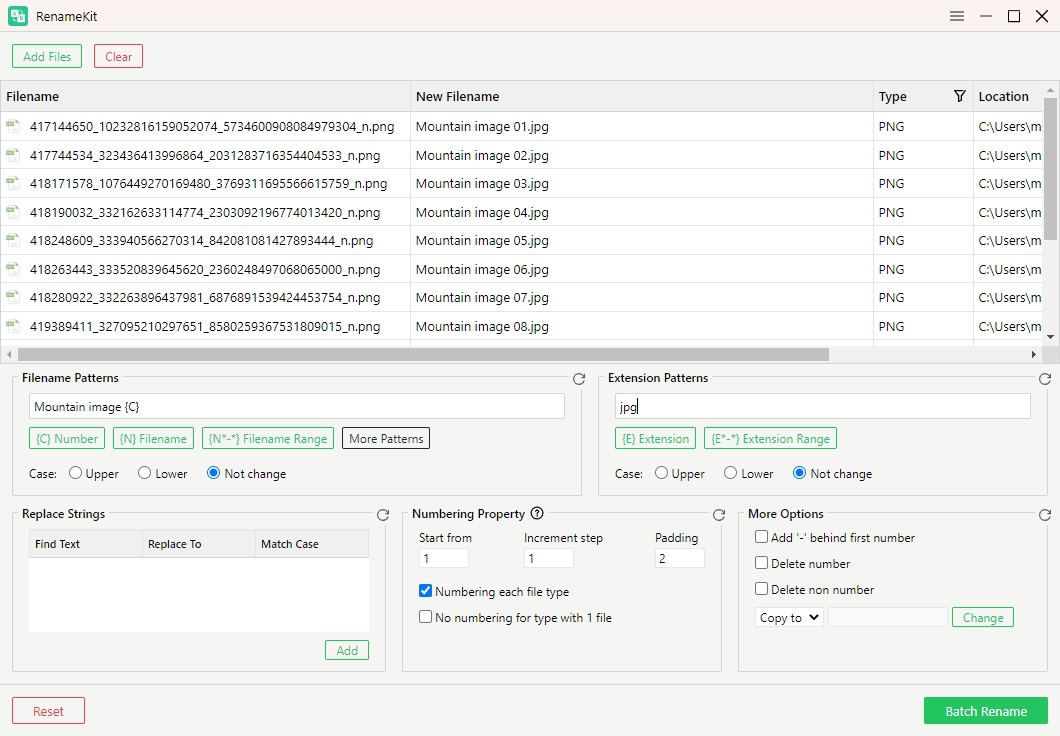
- Drag and drop the files you want to rename into the RenameKit interface.
- Choose the renaming rule that allows you to replace or modify file extensions. For example, you can convert: .png → .jpg
- Preview how each file name will appear after renaming, then click the Пакетное переименование button, and RenameKit will instantly update all selected files.
4. Вывод
Showing file extensions in Windows 11 is a simple yet useful step that helps users better understand and manage their files. Once extensions are visible, it becomes easier to identify file types, organize folders, detect suspicious files, and modify formats when needed. Using the built-in File Explorer or Folder Options settings, you can enable file extensions in just a few clicks.
However, when it comes to changing file extensions for multiple files, the manual method in Windows can be slow and inconvenient. This is especially true for users who frequently manage large collections of images, videos, documents, or other file types.
In these situations, a dedicated bulk renaming tool like Swyshare RenameKit can save significant time and effort. With its intuitive interface, powerful batch renaming features, and real-time preview, RenameKit allows you to quickly change file extensions and rename large numbers of files accurately, so we highly recommend give RenameKiy a try.